Mastering Workflow Management: From Templates to Completion
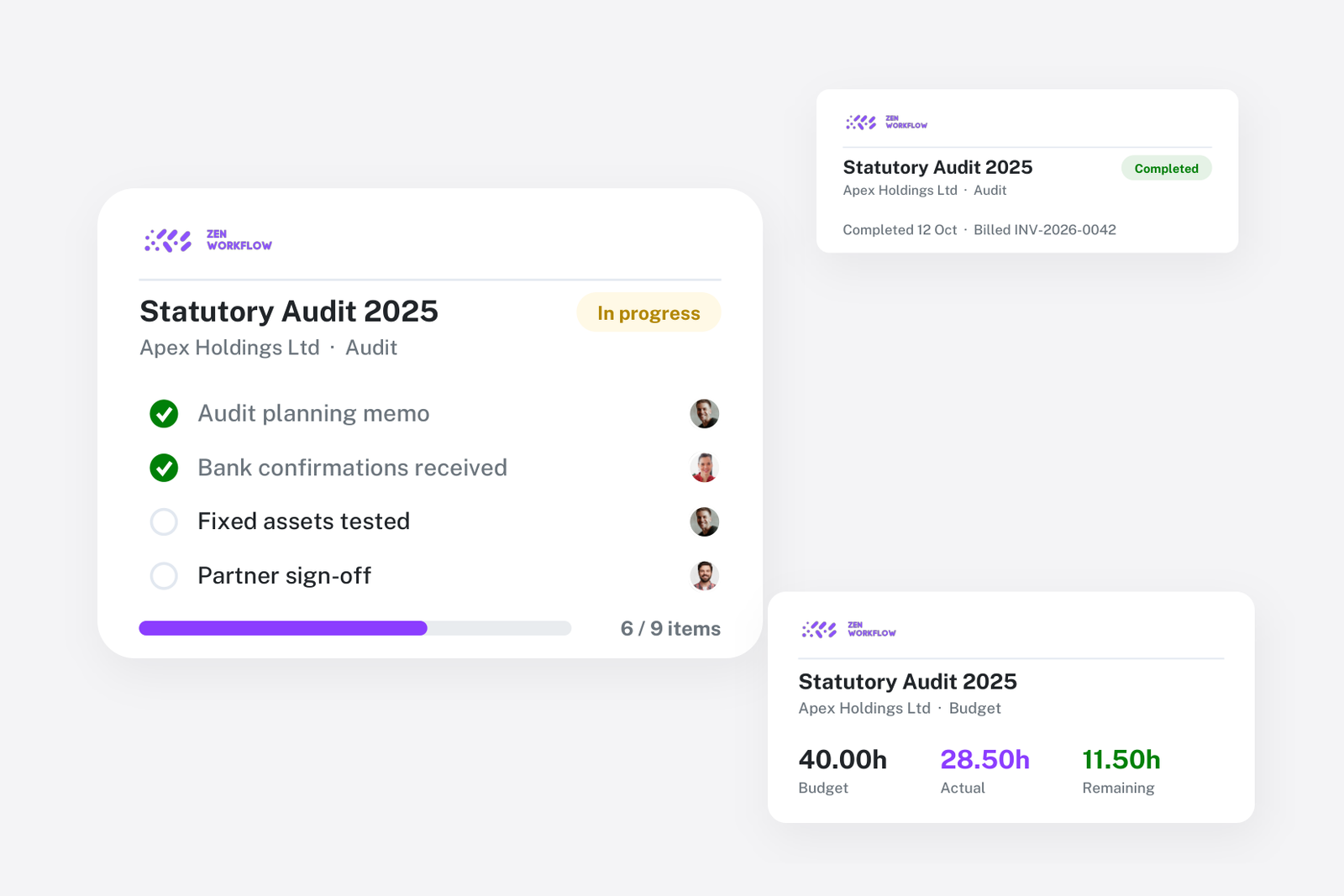
Workflows are the backbone of ZenWorkflow. They represent the structured work your firm performs for clients — from annual audits and tax filings to company formations and compliance reviews. Understanding how to use workflows effectively will transform how your team manages and tracks work.
Creating Workflows
ZenWorkflow offers five ways to create workflows, each suited to different scenarios:
- From scratch: Build a new workflow with custom fields, assign a client and service, and add team members. Best for one-off or unique projects.
- From template: Start from a personal or library template that already has the right structure. This is the most common approach for recurring work.
- Clone existing: Duplicate a completed workflow with optional date adjustments. Perfect for annual recurring engagements.
- Bulk creation: Select multiple clients and create identical workflows for all of them at once. Ideal for seasonal work like year-end filings.
- Service-based: Create a workflow directly from a client's service assignment. The workflow inherits the service's budget type and pricing.
Workflow Structure and Field Types
Each workflow contains structured items (fields) that guide your team through the work. ZenWorkflow supports 12 field types:
- Text and Textarea: For single-line and multi-line input
- Email and URL: Validated input for email addresses and web links
- Number: Numeric values for calculations and tracking
- Yes/No: Simple boolean selections
- Dropdown and Multi-select: Single or multiple choice from predefined options
- File: Upload one or more files to a specific workflow item
- Date and Date & Time: Date pickers with optional time selection
- Member: Team member selector for assigning responsibility
Conditional Logic
One of ZenWorkflow's most powerful features is conditional logic through option-based subitems. When a team member selects a specific dropdown option, additional sub-fields automatically appear. This creates dynamic workflows that adapt to the specific situation.
For example, in a company formation workflow, selecting "Limited Liability Company" from a dropdown might reveal fields for share capital, articles of association, and director appointments. Selecting "Sole Proprietorship" would show a different set of fields entirely.
Status Tracking
Every workflow moves through a lifecycle tracked by statuses:
- Not Started: Workflow created but work has not begun
- Ready to Start: Prerequisites met, work can begin
- In Progress: Active work underway
- Waiting Approval: Work complete, pending review
- Completed: All work finished and approved
- Cancelled: Workflow abandoned
Beyond these built-in statuses, you can create custom sub-statuses for more granular tracking. For example, "In Progress" might have sub-statuses like "Gathering Documents", "Under Review", or "Awaiting Client Response".
Team Collaboration
Workflows support rich collaboration features:
- Member assignment: Assign multiple owners (responsible) and assignees (workers) to each workflow
- Per-item assignment: Assign specific team members to individual workflow items for clear accountability
- Comments: Threaded comments with file attachments and real-time WebSocket updates, so your team can discuss work in context
- Privacy controls: Mark workflows as private (visible only to assigned members) or shared (visible to the team)
Time and Billing Integration
Workflows integrate deeply with ZenWorkflow's billing system:
- Budget types: Set each workflow as Fixed Fee, Hourly Rate, Non-Billable, or Client-Specific pricing
- Budget tracking: Define budget amounts and monitor actual versus budgeted hours and costs in real time
- Timesheet integration: Team members log time directly against workflows, and you can view all time entries from the workflow detail page
- Expense tracking: Add expenses with line items, attachments, and billable or non-billable classification
- Invoice creation: Generate invoices directly from unbilled timesheet entries linked to a workflow
- Revenue charts: Visual charts showing billing data and budget consumption
Dependencies
For complex engagements, workflows can depend on each other. Set a workflow to start only after another completes, or define parallel workflows that must all finish before a final review workflow begins. A visual dependency tree shows the complete chain of connected workflows.
Display and Filtering
The workflow list view is highly customisable:
- Choose which columns appear in your list
- Save filter and column configurations as named views
- Filter by status, client, service, team members, dates, and more
- Sort by any column
- Export filtered results to CSV or XLSX
These saved views let different team members see the information most relevant to their role, without affecting anyone else's view.