Notifications and Activity Feed: Stay on Top of What Matters
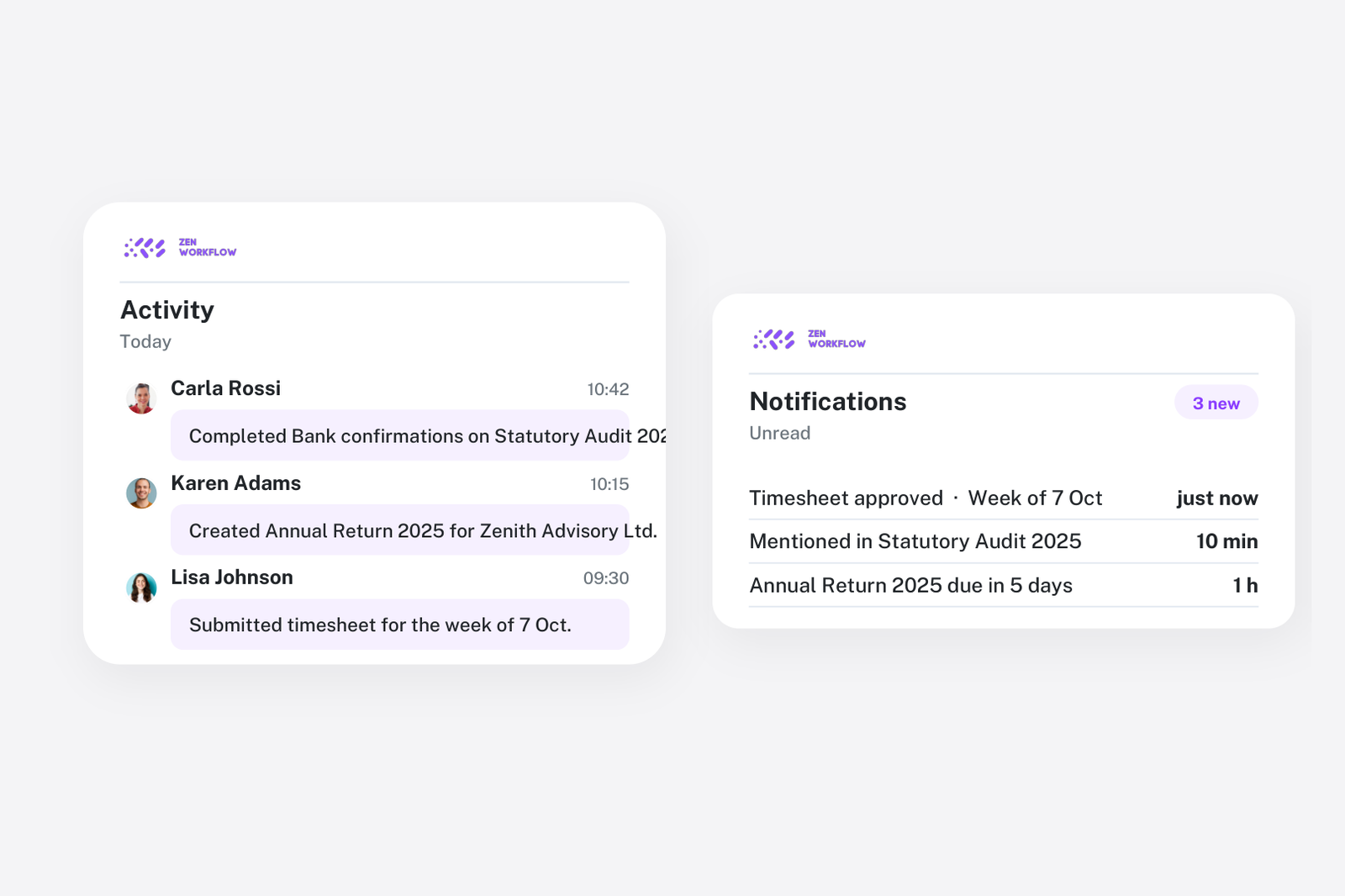
In a busy professional services firm, staying informed about what is happening across your organisation is essential. ZenWorkflow's notification system ensures you never miss an important update, whether it is a workflow status change, a new leave request, or a client-related event.
How Notifications Work
ZenWorkflow generates notifications automatically when significant events occur within your organisation. Each notification is tracked per user, so you see only what is relevant to you.
Notification Types
Notifications cover five key areas of the platform:
- Client notifications: Alerts about client record changes, new client additions, or client-related updates that affect your work
- Leave notifications: Notifications when team members submit leave requests, and when your own requests are approved or rejected
- Timesheet notifications: Alerts about timesheet submissions requiring your approval, and status updates on your own submitted timesheets
- Workflow notifications: Updates when workflows you own or are assigned to change status, receive comments, or are modified
- Workflow billing notifications: Alerts about billing-related changes on workflows, such as invoice creation or budget adjustments
Deep Links
Every notification includes a direct link to its source object. Click a workflow notification and you are taken straight to that workflow. Click a timesheet notification and you land on the relevant timesheet entry. This saves you from having to navigate through menus to find what changed.
Managing Your Notifications
Viewing Notifications
The notification centre provides a clean list of all your notifications, with the most recent at the top. You can:
- Search: Filter notifications by keyword to find specific updates
- Filter unread: Toggle to show only unread notifications, helping you focus on what needs attention
- Read status: Each notification clearly shows whether it has been read or not
Taking Action
- Mark as read: Click on a notification to mark it as read, or use the individual mark-as-read action
- Clear all: Mark all notifications as read with a single action when you have reviewed everything
- Delete: Remove notifications you no longer need
Staying Productive
The notification system is designed to keep you informed without overwhelming you. Notifications appear for events that directly involve you — your assigned workflows, your leave requests, your team's timesheets — so you always know when action is needed.