The AI Assistant: Your Intelligent Practice Management Companion
Artificial intelligence is transforming how professional firms operate, and ZenWorkflow brings AI directly into your practice management workflow. The AI assistant is available on every page, ready to answer questions, query your data, and help you work more efficiently.
Accessing the AI Assistant
The AI assistant lives in a slide-out panel accessible from any authenticated page in ZenWorkflow. Click the AI icon in the navigation to open the panel, or press Escape to close it. Your conversations persist across sessions, so you can pick up where you left off.
Responses stream in real time using server-sent events, giving you instant feedback as the AI formulates its answer. The assistant renders Markdown with code highlighting for clear, well-formatted responses.
Context-Aware Responses
What makes ZenWorkflow's AI assistant particularly powerful is its awareness of context:
- Page detection: The AI knows which section you are viewing — Workflows, Invoices, Clients, or any other module. This context helps it provide more relevant answers.
- Tenant scoping: All AI responses are scoped to your organisation. When you ask about invoices, you get information about your invoices, not another organisation's.
- Permission awareness: The AI respects your access permissions. If you cannot view financial data, the AI will not reveal financial information either.
Data Query Tools
The AI assistant has access to 13 read-only query tools that let it answer questions about your organisation data:
- Workflows: "How many workflows are in progress?" or "List all workflows for Client ABC"
- Clients: "How many active clients do we have?" or "Show me all entity clients"
- Invoices: "What is our total outstanding amount?" or "List unpaid invoices for this month." Void invoices are automatically excluded from financial summaries.
- Estimates: "Summarise our estimates by status" or "What is the total value of pending estimates?"
- Timesheets: "How many hours did the team log last week?" or "Show the approved vs pending breakdown"
- Services: "What services do we offer?" or "How many active services are there?"
- Receipts: "What is the total amount received this quarter?"
- Overdue invoices: "Which invoices are past due?" or "Show invoices overdue by more than 30 days"
Workflow Template Generation
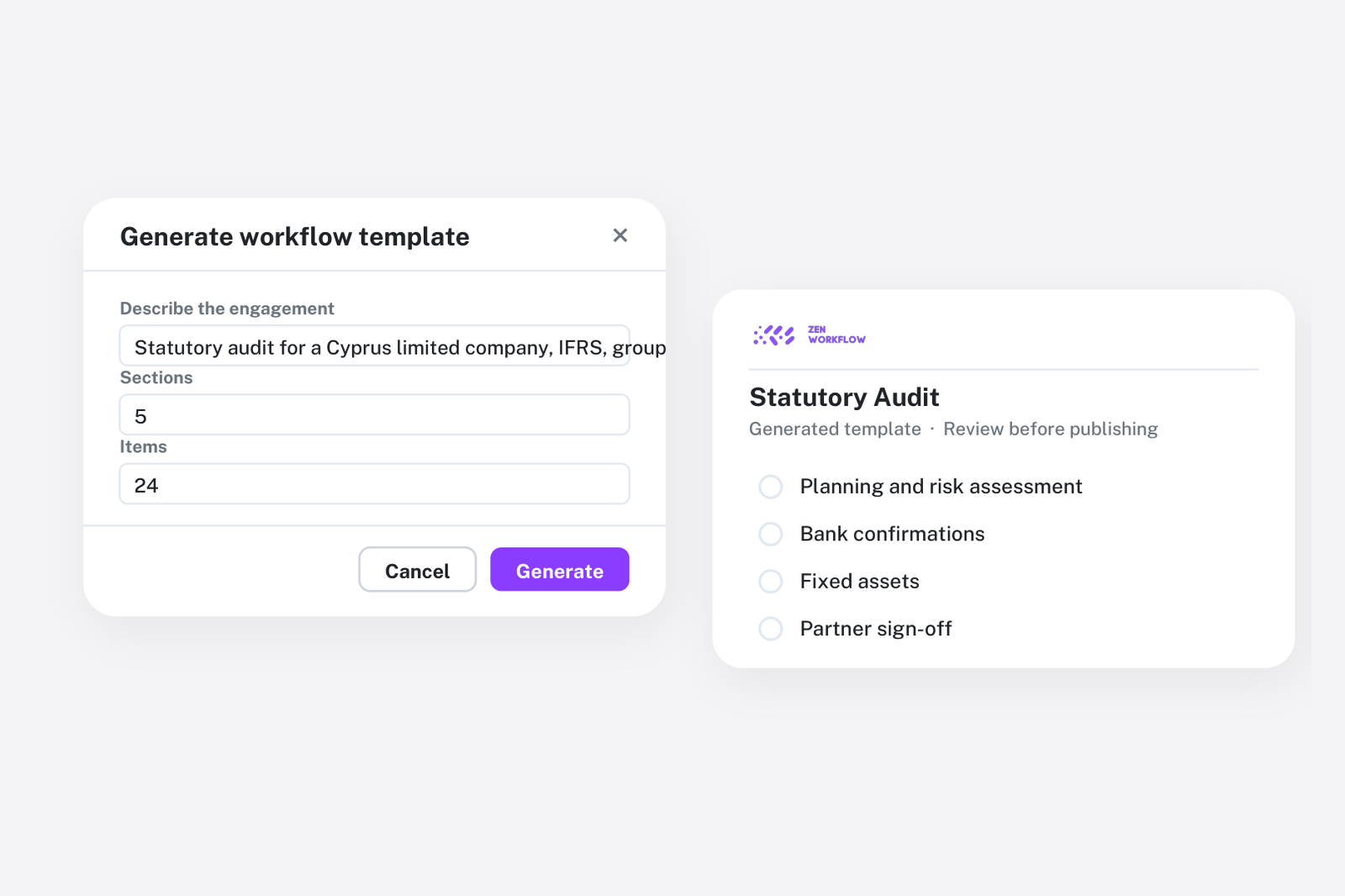
One of the most creative uses of the AI assistant is generating workflow templates from natural language descriptions:
- Describe what you need: "Create a template for an annual financial audit with sections for planning, fieldwork, and reporting"
- The AI generates appropriate items with the right field types — text fields for descriptions, date fields for deadlines, dropdown fields for status selections, and file upload fields for document collection
- Generated items are appended after any existing template items, so you can build on what you already have
- Review and adjust the generated items in the template editor before using them
Practical Examples
Here are some questions you might ask the AI assistant:
- "What is our revenue this quarter?" — The AI queries invoices and calculates totals
- "Which clients have overdue invoices?" — The AI lists clients with unpaid, past-due invoices
- "How is our team's time distributed across services?" — The AI summarises timesheet data by service
- "Create a template for client onboarding" — The AI generates workflow template items
Rate Limiting
To manage API costs, the AI assistant is rate-limited to 30 requests per minute. This is more than sufficient for normal usage but prevents runaway costs from automated or excessive querying.