Organisation Settings: Configuring ZenWorkflow for Your Firm
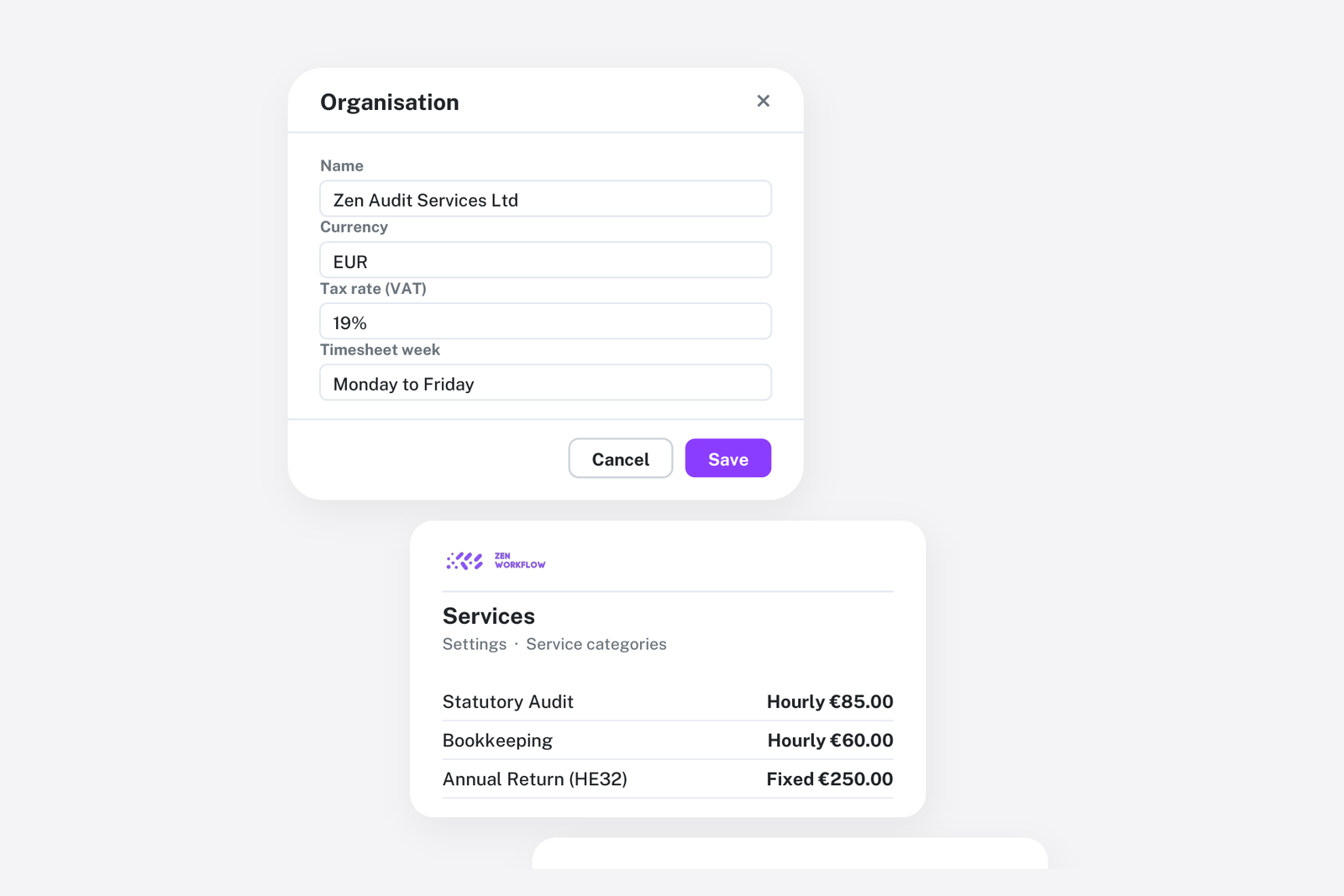
ZenWorkflow's settings panel is where you shape the platform to match your firm's specific needs. Organised into logical sections, settings give administrators full control over how the organisation operates.
Company Settings
General
The foundation of your organisation's configuration:
- Organisation name: Your firm's display name used across the platform and in documents
- Currency: The default currency for your organisation. This is locked after the first invoice is created to maintain financial data integrity.
- Tax and VAT numbers: Store your business registration numbers for use in invoices and official documents
- Business address: Your firm's address, displayed on financial documents
- Brand colour: Set a custom hex colour that appears throughout the interface, giving your organisation a distinctive look
- Logo: Upload your organisation logo with a built-in crop tool. The logo appears on invoices, estimates, and other generated documents.
- Document prefixes: Configure auto-increment prefixes for clients, invoices, estimates, receipts, and credit notes (e.g., INV-001, EST-001)
Services
Manage your service catalogue — the list of services your firm offers. Each service can have a default budget type (fixed fee, hourly rate, or non-billable) and default pricing. Services appear throughout the platform when creating workflows, invoices, and client assignments.
Dropdown Fields
Create shared dropdown options that can be reused across custom fields and AML questionnaires. This ensures consistency when multiple fields need the same set of choices.
Team Settings
Users
Manage your team from one central view:
- Active members: View and edit team member profiles, roles, and billing rates
- Invitations: Send email invitations to new team members with a specific access level
- Resend invitations: Re-send pending invitations that may have been missed
- Member status: Activate or deactivate members as your team changes
Roles
Define job titles with optional default billing rates. Roles like "Senior Consultant" or "Junior Auditor" provide structure for your team and can set default hourly or daily rates that are inherited by team members.
Access Permissions
The access permission system provides granular control:
- Tenant-wide defaults: Set default permissions for each access level (Admin, Manager, User, Restricted)
- Member-specific overrides: Customise permissions for individual team members when the defaults do not fit
- Reset to defaults: Revert any member's overrides back to the organisation's standard policies
Client Settings
Note Categories
Create custom categories for organising client notes (e.g., Meeting Notes, Compliance Notes, General). Categories help team members quickly find and filter notes.
Contact Relations
Configure the types of relationships between contacts and clients. Built-in types include Shareholder and Officer, and you can add custom types like Beneficial Owner, Trustee, Nominee, or Secretary.
Client Capital
For firms that manage corporate clients, configure capital types (e.g., Common Stock, Preferred Stock). This feature requires the Capital Management addon.
Custom Fields
Build custom data structures for your client records:
- Field sections: Organise fields into logical groups, with separate sections for Individual and Entity clients
- 14 field types: Text, textarea, email, number, URL, yes/no, dropdown, multi-select, file, date, date/time, and member fields
- Required fields: Mark fields as mandatory for data completeness
- Search and filter: Enable specific fields for use in client list filtering and search
Workflow Settings
Workflow Status
Create custom sub-statuses beyond the built-in status categories (Not Started, In Progress, Completed, etc.). Custom statuses give your team more granular tracking options that match your firm's specific processes.
Invoicing Settings
General Invoicing
- Default due dates: Set how many days after the invoice date payments are due (30, 60, or 90 days)
- Default notes: Configure template notes that appear on invoices, estimates, and receipts by default
- Estimate editing: Toggle whether estimates can be edited after creation
Sales Tax
Manage tax rates used across all financial documents. Set a default tax rate for your organisation, and create additional rates as needed. The 0% tax rate cannot be deleted as it is required for expense tracking.
Timesheet and Leave Settings
Holidays and Work Week
- Work schedules: Define your organisation's standard working hours per day, with support for split schedules (e.g., morning and afternoon blocks)
- Public holidays: Import country-specific public holidays by year, or add custom holidays
- Calendars: Define leave year periods and assign members to calendars
Leave Types and Calendar
- Leave types: Create categories like Annual Leave, Sick Leave, or Compassionate Leave, each with a colour code for visual distinction in calendars
- Allowance policies: Define whether leave types are unlimited or have specific quotas (in hours or days), with carry-over rules and expiry dates
- Member allowances: Customise allowances for individual members with ratio adjustments for part-time staff
Integration Settings
External Integrations
Manage connections to external services like accounting software. Each integration has its own configuration panel with connection testing, status monitoring, and credential management.
AML Settings
AML settings are accessible through the client views and include:
- Questionnaire Templates: Build and manage AML/KYC questionnaire templates
- Approvers: Configure multi-layer approval routing based on risk levels
- Risk Ranges: Set risk thresholds and revision date intervals for assessment scheduling