Never Miss an Audit or Filing Deadline Again
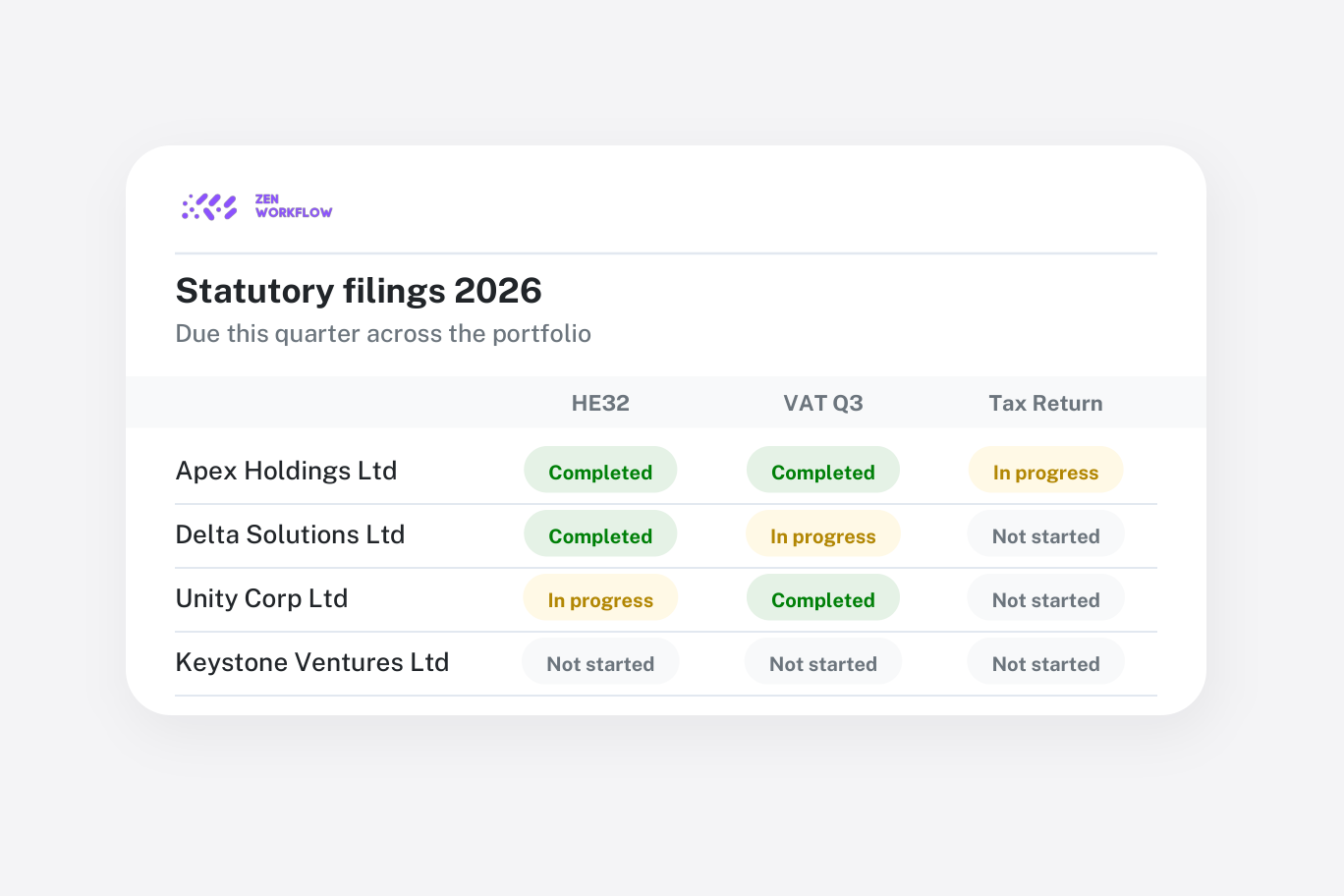
A deadline spreadsheet is only correct on the day someone last updated it. The rest of the time it is a best guess, and the gap between the guess and reality is where penalties, late-filing fees and awkward client calls come from. Firms with fifty clients can get away with it. Firms with five hundred cannot.
The way out is to stop keeping deadlines separately from the work. When the due date lives on the job itself, it is updated by the act of doing the job, and the question "what is due and what has slipped?" becomes a filter rather than a meeting.
The deadline lives on the job
In ZenWorkflow every piece of work is a workflow with its own owner, due date and status. An annual return, a VAT quarter, a tax computation or an audit engagement each has a due date tied to the real filing deadline. The workflow list can be sorted and filtered by service, client, owner, status or period, so you can look at the whole filing season or just what is due this week.
Because the date is on the work, there is nothing to reconcile. The job that moves to completed is the deadline that is met.
Status that moves as the team works
Workflows move from assigned through in progress to completed as the team ticks items off, and every change is recorded with who made it and when. For longer engagements, sub-statuses record the stage inside the job, such as planning, fieldwork, review or filed, so a partner can see not just that an audit is open but where it has got to.
Templates can include approval items, so a return cannot be marked complete until the reviewer signs off. The history shows how long each stage took, which is useful evidence when the same clients are late with their records every year.
Overdue work finds you
Three things make sure nobody has to go looking:
- Due-date reminders go to the owner ahead of the date.
- A daily digest lists each person's upcoming and overdue work, so the day starts with the list rather than with a search for it.
- The dashboard shows overdue work across the whole practice, so partners see what has slipped without opening individual files.
Nothing a client is owed goes uncreated
The most expensive missed deadline is the one for a job that was never created. A client is assigned an annual return service, the year rolls over, and nobody raises the workflow.
ZenWorkflow handles this in two steps. First, assign recurring services to each client, with their cycle. Second, bulk-create the period's workflows for every client on that service from the service template, with due dates set. A coverage view then compares each client's assigned services with the workflows that exist and shows the gaps, so a missing job is visible before its deadline passes rather than after.
This is the same mechanism firms use to run recurring work for every client at once.
Setting it up for a filing season
- Record the services. For each client, assign the recurring services they receive: accounts, tax, VAT, payroll, annual return.
- Create the cycle. Bulk-create this period's workflows from the service templates. Due dates and fees come from the template.
- Work the list. Owners receive reminders and the digest; partners watch the overdue view and the coverage view.
- Review at the end. The status history shows which stages ran long and which clients delivered late, so next season's dates can be set with evidence.
What auditors and tax advisors add
Audit firms tend to run engagements with several reviewers and a budget, so the same list also shows hours against budget while the job is open. See how it fits on the for auditors page. Tax practices care most about the season view: every return, by stage, by owner, with the ones waiting on client records flagged. The for tax advisors page covers that in more detail.
Frequently asked
Can I see deadlines for every client in one view? Yes. The workflow list shows every job with its due date, owner and status, with filters for service, client, owner and period.
Do owners get reminded before the date? Yes. Due-date reminders are sent ahead of the deadline, and the daily digest lists upcoming and overdue work per person.
Can I track stages inside an audit? Yes. Sub-statuses record the stage of the engagement alongside the main status, and the history shows how long each took.
How do I create next year's jobs for everyone? Bulk-create workflows from a service template for every client assigned to that service. Each client gets its own job with the due date set.
Will it tell me if a client has no job for a service they pay for? Yes. The coverage view compares assigned services with existing workflows and lists the gaps.
Where to start
Pick the one service with the most deadlines, assign it to the clients who receive it and bulk-create the current cycle. That single list usually replaces the spreadsheet within a week. Book a demo if you would like us to set it up with your real client list, or start a free trial.