Plan Team Capacity Around Leave and Deadlines
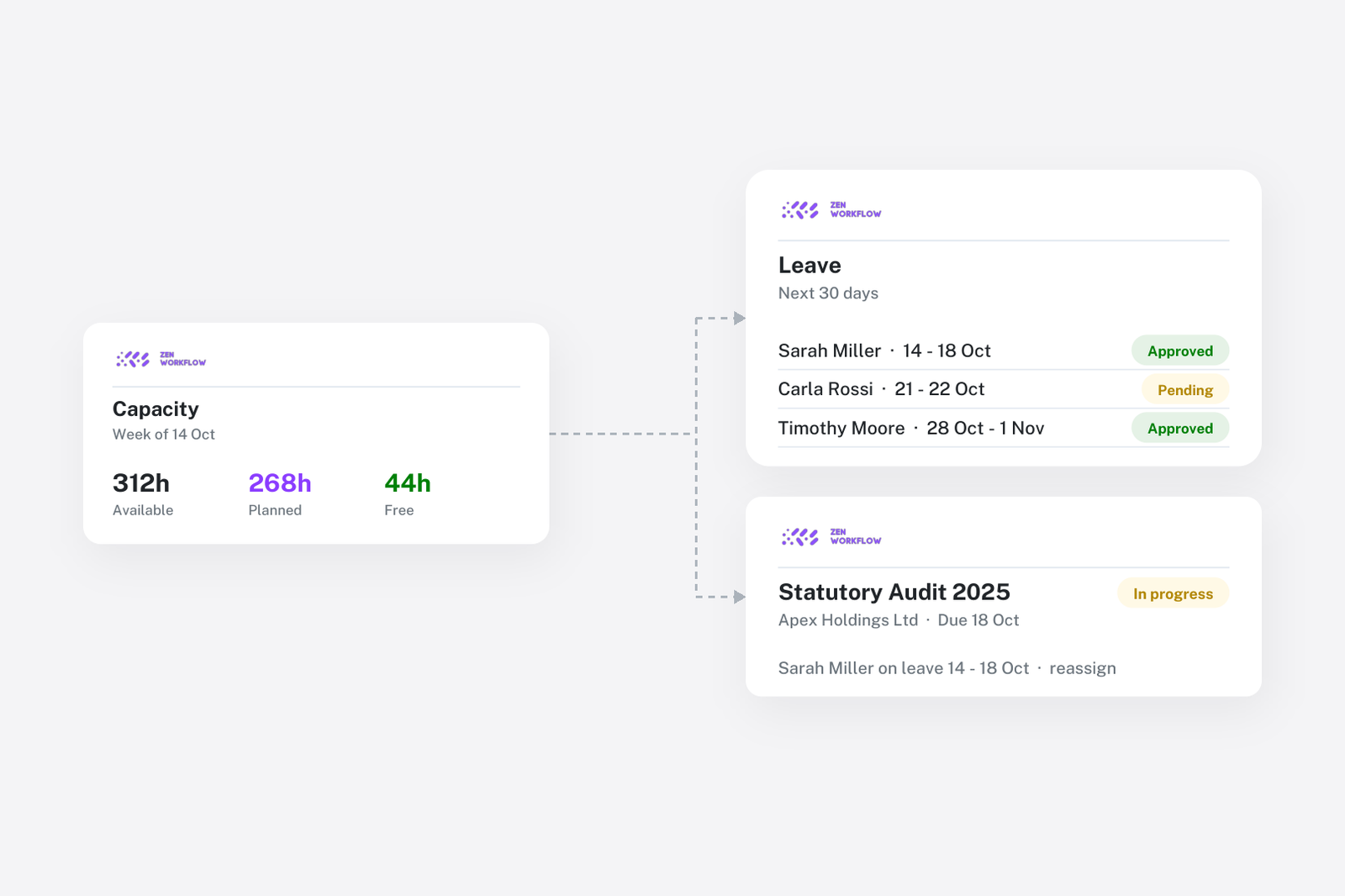
Capacity in most firms is managed by asking. A new job comes in and the manager asks three people what they have on. A deadline approaches and someone discovers the reviewer booked that week off in January. Timesheets wait for approval, so the picture of last week is always a week late. None of this is a people problem. It is that workload, leave and hours are kept in three places that do not talk to each other.
Every open job by owner
Because every piece of work is a workflow with an owner and a due date, the workload report lists each team member with their open workflows, due dates and hours logged. The manager sees who is stretched and who can take the next job without a round of messages.
Assignment is explicit. A workflow can have several members with role-based access, so the owner, the reviewer and the junior doing the fieldwork are all visible on the job and on their own lists.
Hours against budget as they are logged
Each workflow compares budgeted and actual hours as time is logged, so a job that is consuming more than planned shows on the job that week. This matters for capacity as much as for profitability: an engagement at 120% of budget is also an engagement that is taking someone's time away from the next one.
Weekly timesheets are approved in a single view, by person and by week, so logged hours become reliable data the same week. See time tracking for how the timesheet works.
Leave beside the deadlines it affects
Leave requests, approvals, allowances and balances are handled in the app, and the team leave calendar shows who is off in any week. The useful part is that the calendar sits next to the workflow list: before assigning deadline work, the manager can see that the reviewer is away the week it is due and plan around it rather than discover it.
Staff see their own balances and request time off without a form or a spreadsheet; managers approve from the same place they see the calendar. The leave management page covers the mechanics.
Three habits that make capacity visible
- Own every job. Every workflow has an owner and a due date. A job without an owner is invisible to capacity planning.
- Log and approve weekly. Time is submitted against workflows and approved in one view, so the workload report is current.
- Plan around leave. Check the team calendar before assigning deadline work, and look at it again when a deadline moves.
Reading the workload report
The report answers a few recurring questions directly:
- Who has room? Team members with few open workflows and low logged hours in the period.
- Who is overloaded? Members with many open jobs due in the same window, especially where hours are already over budget.
- What is at risk? Jobs due in a week when their owner or reviewer is on leave.
- Where is the bottleneck? Approval items waiting on the same reviewer across many jobs.
For partners
Workload, pending approvals and the leave calendar are firm-wide views, with role-based access controlling who sees what. A partner can see the whole team on one screen and drill into a job; a manager sees their team. Nobody has to compile anything.
Related reading
Capacity is one side of utilisation. The other is profitability by client and service, which uses the same logged hours valued at billing rates. For how deadline work gets onto the list in the first place, see never miss an audit or filing deadline.
Frequently asked
Can I see what each team member is working on? Yes. The workload report shows every open workflow by owner, with due dates and hours logged.
Does it show hours against budget during the job? Yes. Each workflow compares budgeted and actual hours and fees as time is logged.
Is leave management included? Yes. Requests, approvals, allowances, balances and a team leave calendar are part of every paid plan.
Can leave be approved in bulk? Yes. Pending requests can be approved together, and public holidays are handled per country.
Can I set different billing rates per person? Yes. Each team member has a billing rate, so the value of logged time is known per job.
Where to start
Assign an owner and due date to every open job, turn on weekly timesheets and move leave requests into the app. Within a month the workload report answers the questions you currently ask around for. Book a demo or start a free trial.